Import a statement is where your bank lines come from. You upload the complete CSV export from your bank, unfiltered and unedited, so that the record matches what the bank holds.
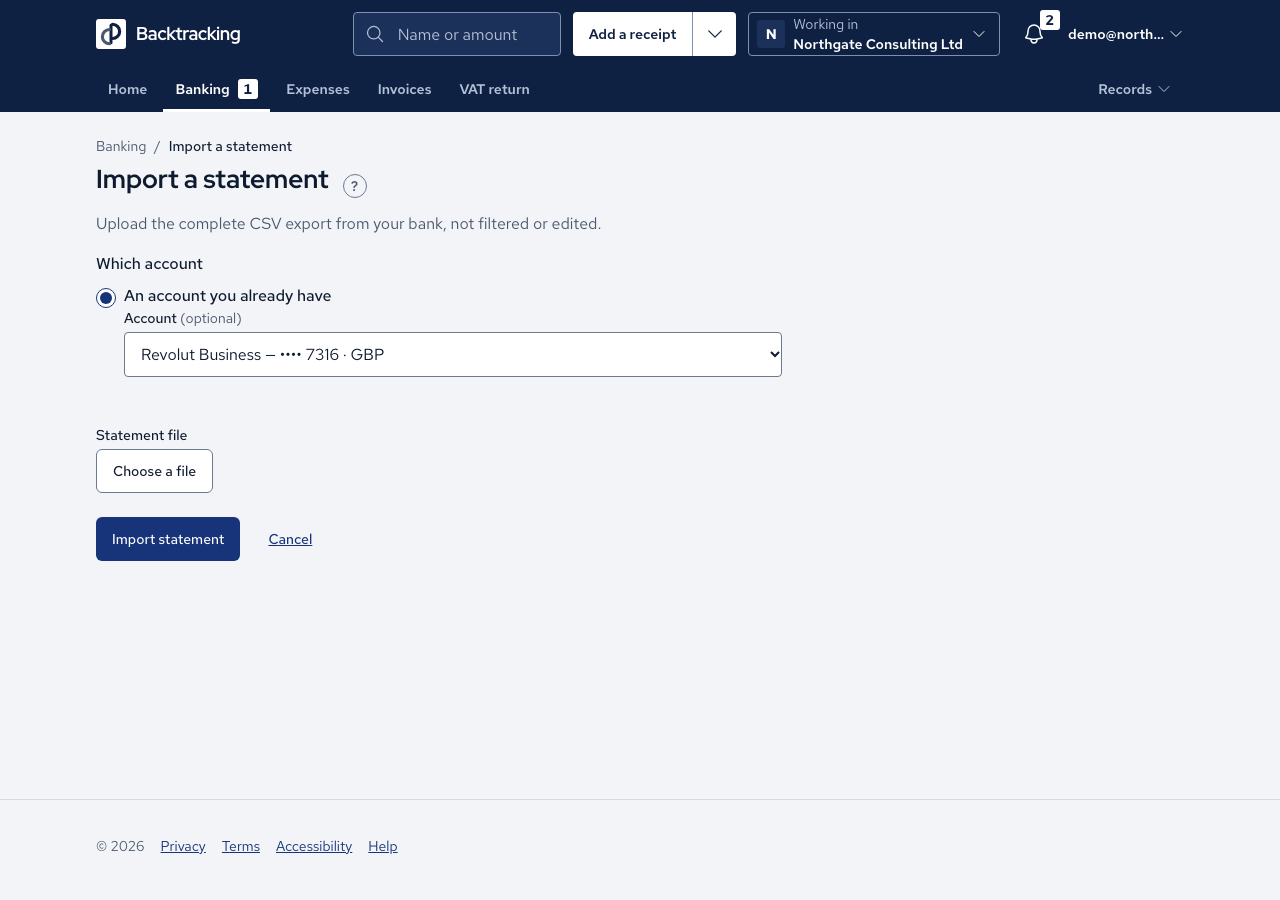
- On your bank's website, export the whole statement period as a CSV file.
- Open Import a statement. It appears on the Banking page when you have no bank lines yet, and in the menu beside the header's record button.
- Under Which account, choose An account you already have, or A new account and fill in Account name, Bank and Currency. Last 4 digits is optional, though it helps you tell accounts apart later.
- Under Statement file, press Choose a file, pick your CSV, then press Import statement.
- If the app does not recognise your bank's column headings, Check the columns shows the first five rows. Confirm which column is the date and which holds the amount, then press Confirm and import. A mapping with no amount column is refused, and the app remembers your choice for that account.
- Import result tells you how many rows were read, imported and rejected, and which dates they cover. Press View transactions to see your bank lines.
Cases
- Uploading the same file twice imports nothing new, and the result tells you the file was already imported and when.
- A statement that overlaps an earlier one imports only the new lines.
- A row with an amount such as 12.345, or a date that does not exist, is rejected with its row number and the reason. The other rows still import.
- A spreadsheet renamed to .csv is refused, and you are asked to export the statement as CSV instead.
- A file over the size limit is refused before it is read, and the message states the limit.
- A file with a header and no transactions imports nothing, and this is not treated as a failure.
- A fee charged on a payment becomes its own transaction, so you may see more transactions than rows.
- Money out is negative and money in is positive. Two identical payments on one day are both kept.
Good practice
- Upload the complete export each time. Overlaps and repeats are safe, because nothing is imported twice.
- Correct any rejected rows in your export and upload the file again. Lines already imported are not duplicated.
- Imported lines cannot be edited or deleted afterwards, so check the file before you confirm.
- An imported line is not a VAT figure. It counts towards turnover only once you have categorised it.