On the open demo changes are switched off, so these steps need your own trial copy of the seeded demo company.
- On Help → Try it in five minutes, download receipt 1, receipt 2, receipt 3 and the bank statement.
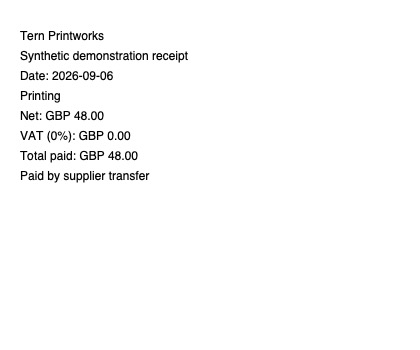
- On Expenses, press Record an expense; on Record an expense, press Choose a file and select the first receipt, then Read details from this receipt. Check the proposed supplier, date and amounts, choose Motor & travel, and press Save expense to confirm. Repeat for receipts 2 and 3, choosing Office supplies & postage. The first two expenses match the seeded bank payments immediately; the third is a small cash purchase. If receipt reading is disabled, use Choose a file, type the supplier, date and total paid from each receipt, enter zero VAT, choose the same category and press Save expense.
- On Banking, press Import a statement; on Import a statement, choose the existing bank account, select the CSV in Statement file, and press Import statement. Four new lines appear, including the £1,320 Brightwater Studios payment proposed as Sales income; this turnover proposal still needs your confirmation.
- On Invoices, open the unpaid Brightwater Studios invoice INV-0007; on its detail page, press Allocate under Suggested payments and accept the confirmation to settle it in full.
- On Banking, open the bank account and press Confirm on the Brightwater Studios income line. Open VAT return, choose the open July–September 2026 quarter and watch Box 1 rise by £204.60 (£1,320 × 15.5%).
- Afterwards, on VAT return check the open quarter's figures; on Invoices open INV-0007 to see its payment, and on Expenses open the Northern Rail Services and Tern Printworks expenses to inspect their bank matches.